Showing posts with label Android. Show all posts
How to Instantly Translate Anything Using Your Smartphone Camera
This is one of the most amazing android tricks for your android phone. You can translate anything in your phone in Augmented reality. This is like a technology of future in your hands.
Imagine you are in a foreign country and come across a sign in a language that you are unable to read or understand. Now you have help at hand with a new App that translates foreign language road signs to your language.
![]() |
| How to Instantly Translate Anything Using Your Smartphone Camera |
How to Instantly Translate Anything Using Your Smartphone Camera
This Google translate app allows you to translate just by clicking an image with your smartphone’s camera. Download Google Translate app in your Phone and select your preferred language.
![]() |
| Google Translate |
Tap on the Camera icon and translate anything in your android phone with the help of this camera app.
![]() |
| Google Translate App |
Google Translate App Features
• Translate between 103 languages by typing
• Tap to Translate: Copy text in any app and your translation pops up
• Offline: Translate 52 languages when you have no Internet
• Instant camera translation: Use your camera to translate text instantly in 29 languages
• Camera Mode: Take pictures of text for higher-quality translations in 37 languages
• Conversation Mode: Two-way instant speech translation in 32 languages
• Handwriting: Draw characters instead of using the keyboard in 93 languages
• Phrasebook: Star and save translations for future reference in any language
Translations between the following languages are supported:
Afrikaans, Albanian, Amharic, Arabic, Armenian, Azerbaijani, Basque, Belarusian, Bengali, Bosnian, Bulgarian, Catalan, Cebuano, Chichewa, Chinese (Simplified), Chinese (Traditional), Corsican, Croatian, Czech, Danish, Dutch, English, Esperanto, Estonian, Filipino, Finnish, French, Frisian, Galician, Georgian, German, Greek, Gujarati, Haitian Creole, Hausa, Hawaiian, Hebrew, Hindi, Hmong, Hungarian, Icelandic, Igbo, Indonesian, Irish, Italian, Japanese, Javanese, Kannada, Kazakh, Khmer, Korean, Kurdish (Kurmanji), Kyrgyz, Lao, Latin, Latvian, Lithuanian, Luxembourgish, Macedonian, Malagasy, Malay, Malayalam, Maltese, Maori, Marathi, Mongolian, Myanmar (Burmese), Nepali, Norwegian, Pashto, Persian, Polish, Portuguese, Punjabi, Romanian, Russian, Samoan, Scots Gaelic, Serbian, Sesotho, Shona, Sindhi, Sinhala, Slovak, Slovenian, Somali, Spanish, Sundanese, Swahili, Swedish, Tajik, Tamil, Telugu, Thai, Turkish, Ukrainian, Urdu, Uzbek, Vietnamese, Welsh, Xhosa, Yiddish, Yoruba, Zulu
How to Instantly Translate Anything Using Your Smartphone Camera
You will see a screen like the one above when you tap the camera and it will show you what your camera sees. Point it at some words and watch them change right in front of you. Further, tap the red camera button to snap a photo, if you want to save a specific image. That’s it.
Also, you do not need an internet connection for the app to function. Since Google stores translation files locally on your phone, there is no need for you to sign up for a local data plan and download them when you travel abroad.
Where to Getting It
Google Translate is a free app available for download on iPhone and Android. To view the download page, you can click those links or can just search the app store on your iPhone or Android to get it directly on your device.
Download Google Translate app for Android Phone Here
How to run Android Apps on your Windows PC Without Bluestacks/Youwave(No Android Emulators)
![]() |
| How to run Android Apps on your Windows PC Without Bluestacks/Youwave(No Android Emulators) |
BlueStacks, YouWave, Droid4X are the Android Emulators that is top performing and is being used by millions of people to run Android Apps on their Windows PC/Laptop.
Today in this tutorial, We are not going to use any Android Emulators, All you want is a working Internet connection and a Web Browser.
1. Go to Manymo.com
2. Click on the Sign Up button
3. Now fill required details like Name, Email, Password and complete the challenge for proving you are a human being
Today in this tutorial, We are not going to use any Android Emulators, All you want is a working Internet connection and a Web Browser.
Let's Start,
1. Go to Manymo.com
2. Click on the Sign Up button
3. Now fill required details like Name, Email, Password and complete the challenge for proving you are a human being
4. Now verify your Manymo account by clicking on the activation link sent to your Email account(Used for sign up process)
5. Now Drag and Drop your specific APK file to the section provided(Check screenshot given below)
6. Wait the file to be uploaded
7. Now you will see many types of Android Screen versions there, Click one of your choices
8.Now the App will launch
9. Now use the App
7. Now you will see many types of Android Screen versions there, Click one of your choices
8.Now the App will launch
9. Now use the App
That's it, See how easily we have launched an Android App on our Windows PC/Laptop without any Android Emulators or any other third party software. Using this method you can use WhatsApp, Games, and other Android APK Based apps.
10 Best Augmented Reality Games Like Pokemon GO
Software developer company Niantic is popular for its new Pokemon GO game that was launched earlier this month in collaboration with Nintendo. In this game, you need to roam around in the real world with your smartphone to find Pokemon and capture them. That’s what augmented reality (AR) means.
AR simply means that the app or game augments reality into its functioning, which means that you can to rely on the real life to play an augmented reality game or use an AR app. But Pokemon GO is not the only augmented reality game/app that we have got, and this certainly not the first time an Android app has used AR technology.
If you have played Pokemon GO and/or are wondering if there are more such games and apps, yes there are. We have created a list of 10 best augmented reality games like Pokemon GO that you should definitely try out right now. Maybe one of those could become your favourite AR game. Let’s check out the games similar to Pokemon.
1. Ingress
This is the first augmented reality game developed by Niantic that relies on your GPS location and is one of the most similar games like Pokemon GO. Your objective is to hack portals and build them up after choosing one of the teams to fight against the other side. You must travel to the various destination in the real world to hack several portals and own them for your team. Yes, it’s working mechanism is similar to Pokemon GO, but the overall feel is different for those who want to try something new.
2. Real Strike – The Original 3D Augmented Reality FPS Gun App
Developed by Yii International, this awesome app turns reality into a military base and brings first person shooting in the real world. It combines your real-life surroundings with 3D gun animation with 25 weapons to choose from. The firing, reloading, and animations are sensitive and cool. Combat items include night vision, thermal vision, and more. It’s an awesome game for FPS lovers, but it’s available for iOS only.
3. Life is Crime
Unlike Ingress or any other light and fun games like Pokemon GO, Life is Crime is based a slightly more real-like concept of gangs and criminals, and those who love watching villains will love it. In this game, players can join gangs of their choice and can have live chats with fellow players. You can fight with other gangs to win territories and complete tasks for rewards. The player base of this game is decently-sized and the game is entertaining. It just needs more players for more fun.
4. Zombies, Run!
Talking about free augmented reality games, this one is basically targeted towards people who want a fun way of jogging or running around to maintain their fitness. Basically, this app has a lot of different missions where zombies surround you and you have to run from them. You have to plug in your earphones for the best sound effects, and then all you’ve got to do is run for your life!
5. Parallel Kingdom MMO
Do you like games that take you to the past in the era of kings and kingdoms? If yes, then the Parallel Kingdom will surely excite you. It’s an augmented reality location-based MMORPG game that lets you complete quests and slay monsters wherever you are. Your location becomes your ground for various activities including battles. There are 40 levels, trading options with other players, chat rooms, leaderboards, and more. It is interesting enough to try out at least once.
6. The Walk
Made by the makers of Zombies, Run!, this game keeps you fit as it requires you to walk. It’s a simple game that takes around three months to complete. You need to walk to a mysterious destination while carrying a virtual package that could save the world. While you get closer to the destination, immersive audio story clips are unlocked.
7. Zombies Everwhere
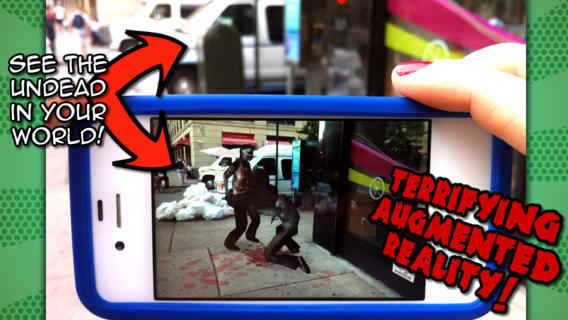
If you are searching for games similar to Pokemon GO, then you should definitely try this one. Instead of catching Pokemon, you have to kill zombies in this game. Neat little game for people who always wanted to be in Zombieland! The game is available on iOS and Android.
8. Geocaching
This one is an augmented reality game based on the idea of treasure-hunting. As you go around your area, you discover real containers hidden around. These can also contain small stuff that you could trade with other players.
9. Clandestine Anomaly
This one is an augmented reality game based on the idea of treasure-hunting. As you go around your area, you discover real containers hidden around. These can also contain small stuff that you could trade with other players.
10. SpecTrek
Play this game and become a ghost hunter. This is the horror genre in the list of games like Pokemon GO. The game is very simple- find ghosts where they spawn with the help of GPs and camera of your smartphone. The more ghosts you catch, the better player you become.
So these are some of the best augmented reality games like Pokemon GO we think are worth a try. Do let us know in the comments below which one is your favourite.
HOW TO ADD 1000-2000 unlimited members on WhatsApp group
![]() |
| HOW TO ADD 1000-2000 unlimited members on WhatsApp group |
WHATSAPP TRICK – HOW TO ADD 1000-2000 GROUP MEMBERS ON YOUR WHATSAPP GROUP.
Whatsapp Group Members Added Trick – Hey Today I am Showing How To Added 1000 to 2000 Group Members. Its Is Easy Trick. For Starting -This Trick You Need A Root Device & Latest Version WhtsApp & Ex File Explore. So Tets go & Break WhatsApp Rool. All steps below :-
Requirements :-
Rooted Device
Ex File Explorer
Latest WhatsApp
How To Add 1000 To 2000 Members In Yout WhatsApp Group :-
Ex File Explorer
Latest WhatsApp
How To Add 1000 To 2000 Members In Yout WhatsApp Group :-
1) First Need To Open Ex File Explorer. If Doesn’t Install On Your Phone Than Download Ex File Explorer From Here.
2) After Download & Install Open Normally.
3) Click On Ex File Explorer Settings Option & Root Explore ON
4) Than Open Com.Whatsapp > Shared.prefd > com.whasapp.pref.
5) Now Edit “256” & Change 1000 – 2000 or As You Like.
6) Now Save It & Restart Your Phone. Thats Done.
How to bypass Android’s lock screen pattern, PIN or password
The main reason to set up some sort of lock screen security on your smartphone is to keep strangers (or friends) from checking out your messages or private pictures. Beyond that, you don’t want anyone who dares to steal your phone to get full access to your emails, pictures or other sensitive data. But what if you’re the one who cannot access your phone? You could forget your PIN or pattern, right? Or someone pranks you by setting up a lock screen pattern and just leaves you struggling with it.
echo adrotate_ad(4, true, 0, 0);
In any case, there’s quite an easy solution to this without smashing your phone against a wall (or your friend’s face). The only thing you need is to have Android Device Manager enabled on your device (before you locked yourself out of your phone). If you have a Samsung phone, you can also unlock your phone using your Samsung account.
Forgot your Android lock screen pattern, PIN or password? Here’s what to do
I tested the following methods using a lock screen pattern, PIN, and password and was able to unlock my LG G2 with Android 4.4.2 successfully.
Unlock your Android device using Android Device Manager (ADM)
As already mentioned, the following method only applies to devices that have Android Device Manager enabled.
- On a computer or other mobile phone, visit: google.com/android/devicemanager
- Sign in using your Google login details that you also used on your locked phone.
- In the ADM interface, select the device you need to unlock (if it isn’t already selected).
- Select ‘Lock’
- In the appearing window, enter a temporary password. You don’t have to enter a recovery message. Now click ‘Lock’ again.
- If it was successful, you should see a confirmation below the box with the buttons Ring, Lock, and Erase.
- On your phone, you should now see a password field in which you should enter the temporary password. This should unlock your phone.
- Now, before you go on with your life, go to your phone’s lock screen settings and disable the temporary password.
- That’s it!
Unlock your Android lock screen pattern with your Google Login (only Android 4.4 and below)
echo adrotate_ad(5, true, 0, 0);If you haven’t updated your firmware to Android Lollipop (5.0), then there’s a faster way to unlock a lock screen pattern.
- Enter a wrong lock screen pattern five times (shouldn’t be hard if you don’t remember the correct one)
- Select ‘Forgot Pattern’
- Now you should be able to enter a backup PIN or your Google account login.
- Enter either your backup PIN or your Google login.
- Your phone should now be unlocked
Bypass your Samsung phone’s lock screen using its Find My Mobile tool
This is an easy way to unlock your Samsung device if you created a Samsung account and registered it beforehand.
- Go to Samsung Find My Mobile.
- Sign in using your Samsung login details.
- In the Find My Mobile account interface, you should see your registered phone on the left-hand side. This tells you that you’re phone is registered to that account.
- On the left sidebar, select ‘Unlock my screen’.
- Now select ‘Unlock’ and wait for a few seconds for the process to finish.
- You should get a notification window telling you that your screen is unlocked.
- That’s it. Your phone should be unlocked
Disable your lock screen using custom recovery and “Pattern Password Disable” (SD card needed)
This method is for more advanced Android users that know what the terms “rooting” and “custom recovery” mean. As the title says, for this to work you need any kind of custom recovery installed and your phone must have an SD card slot. Why the SD card? Well, we need to transfer a ZIP file to your phone and that’s usually not possible when it’s locked. The only way is to insert an SD card with the file.Unfortunately, card slots became kind of a rare thing in the smartphone world, so this will only work for some people.
Here’s what you need to do:
- Download the Pattern Password Disable ZIP file on your computer and put it on an SD card.
- Insert the SD card into your phone.
- Reboot your phone into recovery.
- Flash the ZIP file on your SD card.
- Reboot.
- Your phone should boot up without a locked screen. Should there be a password or gesture lock screen, don’t panic? Just type in a random password or gesture and your phone should unlock.
More proven methods to unlock your phone submitted by our readers
It’s possible that none of the options above got you passed the lock screen. Luckily, some of our readers struggling with that issue were able to find even more creative ways to bypass their lock screen and were so kind to share them. We’re extremely thankful for that!
We haven’t tested them thoroughly on multiple devices or Android versions, so we cannot promise that those will work for you. However, a number of people managed to access their phone again and we hope you’ll do so as well.
Submitted by Starr:
- Call your locked phone from another one.
- Accept the call and hit the back button during the call
- This should give you complete access to your phone
- Go to your phone’s security settings and try to remove the pin or pattern. To do so, you first need to put in the current one, which you obviously don’t know anymore. The only way is to guess and try out different combinations until you get it right. Should you get this far, then you can disable the pin or set a new one.
Submitted by Zubairuddin Buriro (probably only applicable to LG phones):
Zubairuddin’s very creative method can help you out in case you’re Wifi and data connection are both turned off. As mentioned above, this method might only work on LG phones, since it relies on LG’s native quick memo app.
- Press and hold the volume up key, until the Quick Memo app launches.
- Draw something random into it.
- Tap the sharing button and select SmartShare.
- Selecting SmartShare should activate your phone’s Bluetooth and Wifi (important here is Wifi).
- Make sure you’re close to a Wifi network that you’re phone connects to automatically.
- Now, you’re back online and you can go ahead and try all the methods discussed above that require a data connection.
Erase your phone (and lock screen) using Android Device Manager
If all the methods above didn’t work out, you need to move on to more drastic measures. In case Android Device Manager is enabled on your phone and unlocking it didn’t work, you can use it to erase all data by selecting the Erase button. Be aware that this will delete all apps, settings, and other data on your phone. The good thing is, once the erasing process is done, you can use your phone again (after setting everything up).
Reset your phone to factory settings
If Android Device Manager doesn’t work at all for you, your last resort is to make a factory reset on your device. On Nexus devices, this can be done in recovery mode, for example. Below, we take you through the reset process that works with Nexus devices. If you own a different Android phone, check out this site and look for your manufacturer’s support page.
How to perform a factory reset on your Nexus using recovery mode:
Important note: If your Nexus device is running Android 5.1 or higher, you’re required to enter a Google username and password associated with your device after the factory reset process finishes. This is a security measure to make sure that no stranger is resetting your phone or tablet. If you fail to enter that data, the phone won’t be usable anymore. Really make sure you know your Google username and password.
No matter what version of Android you’re running, you need to have an internet connection and if you just changed your Google account password, you need to wait at least 72 hours before starting the reset process.
- Turn off your device.
- Press the volume down AND power button and keep pressing them. Your device will start up and boot into the bootloader (you should see “Start” and an Android lying on its back).
- Press the volume down button to go through the different options until you see “Recovery Mode” (pressing volume down twice). Now press the power button to enter recovery mode.
- You should see an Android on its back and a red exclamation mark.
- Press and hold the power button, then press and release the volume up button. Now you should see “Android Recovery” written on the top together with some options.
- By pressing the volume down button, go down the options until “Wipe data/factory reset” is selected. Press the power button to select this option.
- Using the volume down button again, go down until “Yes – erase all user data” is selected. Make sure you read through the notes above and then, finally, press the power button to start the reset process.
- Once the process is done, press the power button to select the reboot option. Your device will now reboot and start the initial setup process of your device. That’s it! All you need to do now is to set up everything and restore your data.
You can also check out Google’s official page and follow the instructions there.
As already mentioned earlier, be aware that resetting or erasing your device will delete all data like apps, settings, videos, and pictures.
Last words
Should you set up a new lock screen PIN or pattern. Make sure to write down the numbers or pattern on a piece of paper or in a text file on your computer to avoid that hassle the next time. If you run into any problems using the methods above, feel free to leave a comment.
How to Play Clash Of Clan in Offline Mode
[Download] Clash of Clans 8.332.2 Apk – Offline Installer
The COC Offline Installer is now available for everyone to download with the latest Clash of Clans v8.332.2 , a lot of new heroes and characters were added to the game such as the new troop Miner and Baby Dragon then the previous Bowler that throws bouncing boulders into enemy bases is now lessened in troop capacity, New levels for Hog Rider, Valkyrie, Goblin, Inferno Tower and Mortar plus Faster Spell brewing and the most important update in order to gain more gold and elixir loots is the Clan War matchmaking, to know the detailed updates and more just browse on google play for the latest version of Clash of clans.
Take a look at the latest updates on the Clash of Clans Android Game.
How to convert Android into iOS !
No doubt Android is the best Operating system available in the market,but Do you like the iOS software, but you can’t afford an iPhone? But wait here is a solution to it ..You can transform your Android Device to completely look like iPhone ..of course not in body!
This trick is only for those people who like iOS but have android phone..and also that this only changes the looks and feels of android, not the software..
This is only for those who like the iOS theme but have an android phone. Hope you understand. 🙂
You don’t have to Root your device before installing iOs on it .
You will also be able to run iOs apps on your android devices..isn’t cool??If you don’t like the iOS look you can easily revert back to the android OS as well.So let's tell you how you can convert android into ios
Before you begin the process to convert your android to iOs you have to keep in mind that you have to update your android OS to the latest version available for that device and this trick is working on the following OS:
4.4 KitKat
4.3 Jelly Bean
4.2 Jelly Bean
4.1.x Jelly Bean
4.0.x Ice Cream Sandwich
3.2 Honeycomb
3.1 Honeycomb
2.3.3–2.3.7 Gingerbread
2.3–2.3.2 Gingerbread
2.2 Froyo
2.0–2.1 Eclair
1.6 Donut
1.5 Cupcake
4.3 Jelly Bean
4.2 Jelly Bean
4.1.x Jelly Bean
4.0.x Ice Cream Sandwich
3.2 Honeycomb
3.1 Honeycomb
2.3.3–2.3.7 Gingerbread
2.3–2.3.2 Gingerbread
2.2 Froyo
2.0–2.1 Eclair
1.6 Donut
1.5 Cupcake
Note: Before trying out this method firstly make a backup of your data and contacts although this method is 100% safe.We will not hold any responsibility for loss of data.!
Step 1:
Download the Software to your PC or Mac.Just go to the download page by visiting :iOSonAndroid
Step 2:
Extracts the files in the folder.Open the Downloaded software and run iOs on Android installation files on your desktop.
Step 3:
Install the software in your PC and Open iOs on Android after installing.
Step 4:
Now connect your phone or tablet using USB cable.
Step 5:
iOs on Android will recognize your device.Just verify whether the detected device is correct or not.If it doesn’t recognize your phone correctly then please try to update your phone to the latest android OS available for your device.
Step 6:
Now check the options that you want to install.You can only choose between iOs 7 and 8 although by default latest available iOs will be installed.
Step 7:
Click on install and wait for the program to install iOs on your device.Once the installation is completed your device will be restarted.
If you don’t want to completely transform your android device to iOs than you can choose from the listed launchers that will partially convert your android into iOs:
- Espier Launcher
- Hi Launcher iOS 7 Theme
- jbOS7
- Fake iPhone 5
- iOS 7 Lockscreen Parallax HD
These Launchers are available in Google Playstore and obviously one of the Best that are available.
How To Turn Your Smartphone Into a Projector!
Turn Your Smartphone Into a Projector!
Hello Readers Today we gonna Learn how to convert your Android Phone into a Projector lets see Step By Step
Smartphones can do amazing things, and one of the best things about them is that they can play videos, whether from youtube or from files you've transferred to them. The only problem with that is the small screen size, that makes it uncomfortable to watch anything for more than a few minutes.
And what happens when you want to show a special clip or video you took to a group of other people? It's not fun to huddle and squint. For that reason, we bring you this simple DIY project anyone can make, and it'll turn your ordinary smartphone to a real life projector!
What You'll Need:
- Shoe box
- Magnifying glass
- paper clip
- Cutting knife
- sticky tape
- ruler
- pencil
- smartphone
- black paint (optional)
Find the exact center of the box (important for focus). Now place the center of the magnifying glass at the exact center of the box and mark the spot.
Use the knife to cut around the mark.
Optional - color the box black.
Enter the magnifying glass into the hole created and set it in place with the sticky tape.
Make a hole at the edge of the box and pass the charger cable through it.
Use the paper clip to make a little stand for the smartphone. Then, using the sticky tape, connect the stand you made to the box.
To prevent the picture to be mirrored, you'll need to turn the screen around. It doesn't really ruin the experience but it will change the direction of everything, and if you have subtitles, they won't display right.
iPhones have this function in the settings (Settings - General - Interface - touch). If you have an android phone, you can download an app called 'picture flip' that will do the same thing.
Close the box, point it at the wall and check if the focus is right. If not, move the stand until you find it.
That's it! Now you can watch and show others youtube videos, clips, tv or movies from your smartphone projected on your wall!
Subscribe to:
Posts (Atom)